


Tracking 404 pages is relevant for any project, both small and large. After all, it depends on this whether the necessary content will be shown to the user and whether he will convert.
You can track 404 pages using a custom report in Google Analytics, but you will have to do it manually each time. Or you can use Tag Manager, automating this process to the event level with unloading URL addresses and comparing indicators over time.
Tracking 404 pages using Google Tag Manager is carried out in several stages:
- Parsing page titles
- Identifying 404 pages
- Creating an event tag
- Setting up an event in Google Analytics
- Getting 404 page URLs
➊ Grab the page titles
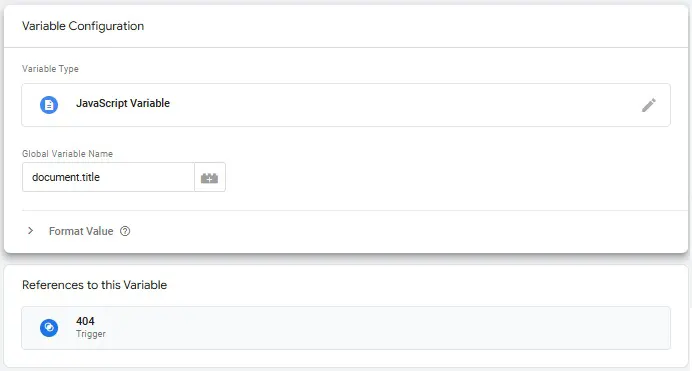
Parsing page titles is done by creating a JavaScript variable called "document.title". The main property of this variable is to get the document title.
➋ Spotting 404 pages
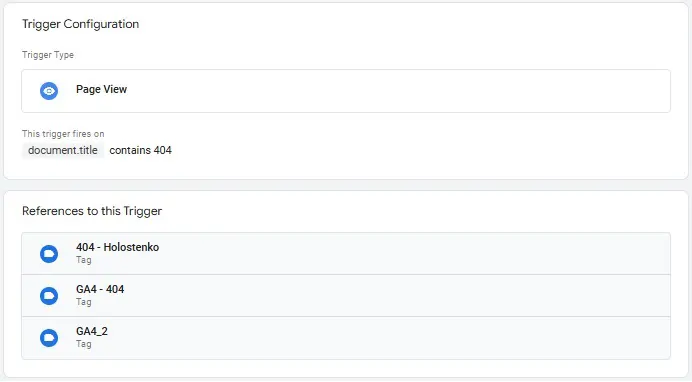
Next, we create a trigger. It’s a “Page View” trigger, and we set the condition so that if the page title contains “404” or whatever text your 404 error page has, the trigger will activate.
➌ Setting up the event tag
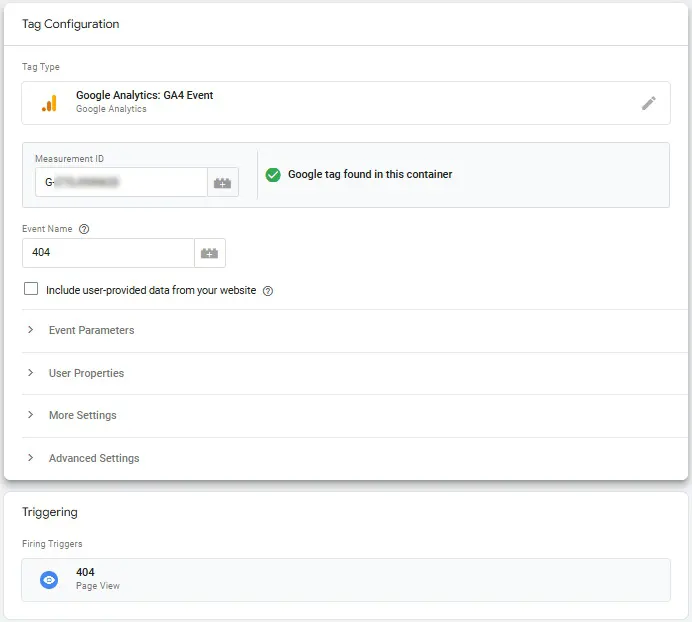
To track these 404 errors in Google Analytics, you need to send that data over with an event tag. In Tag Manager, create an event tag that will fire when the 404 trigger is hit. This tells Analytics, "Hey, we’ve got a 404 error here!"
➍ Receiving an event in Google Analytics
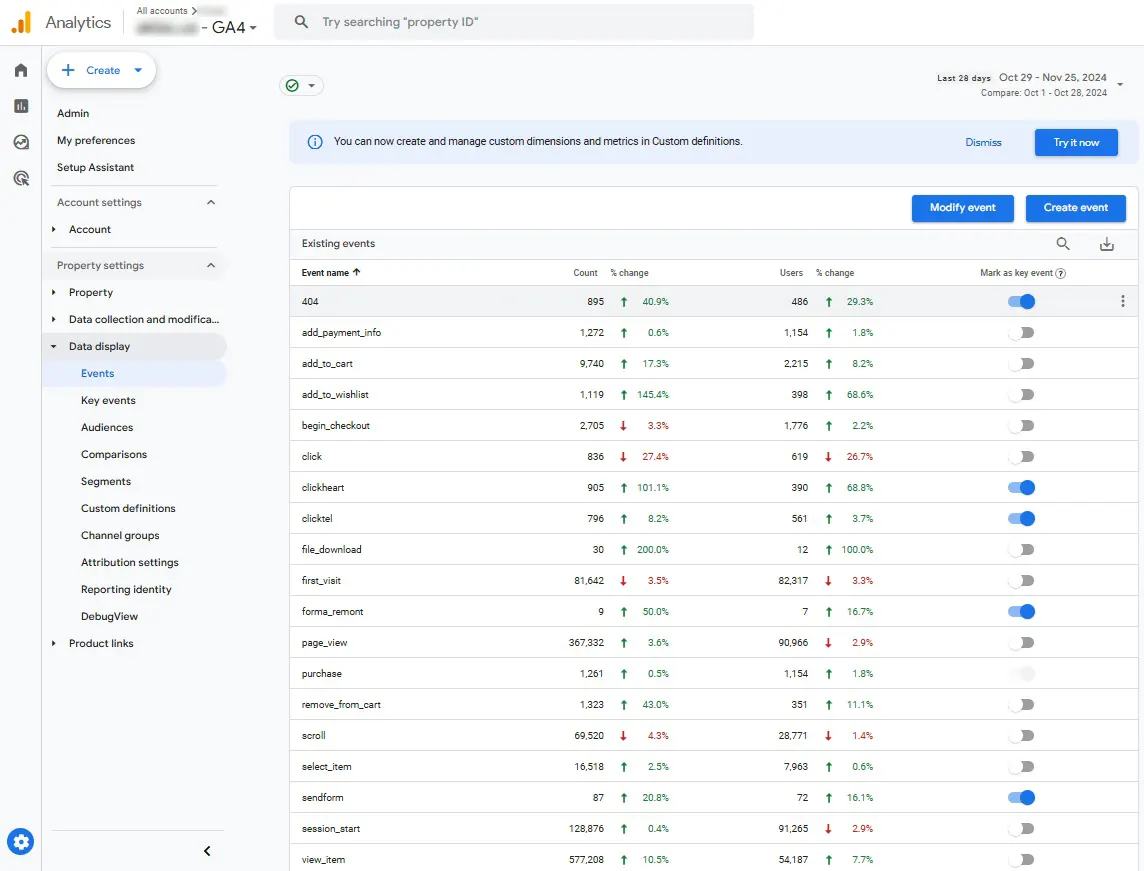
Within a few days - we receive data on 404 events, if any:
➎ Catching the URLs of 404 pages
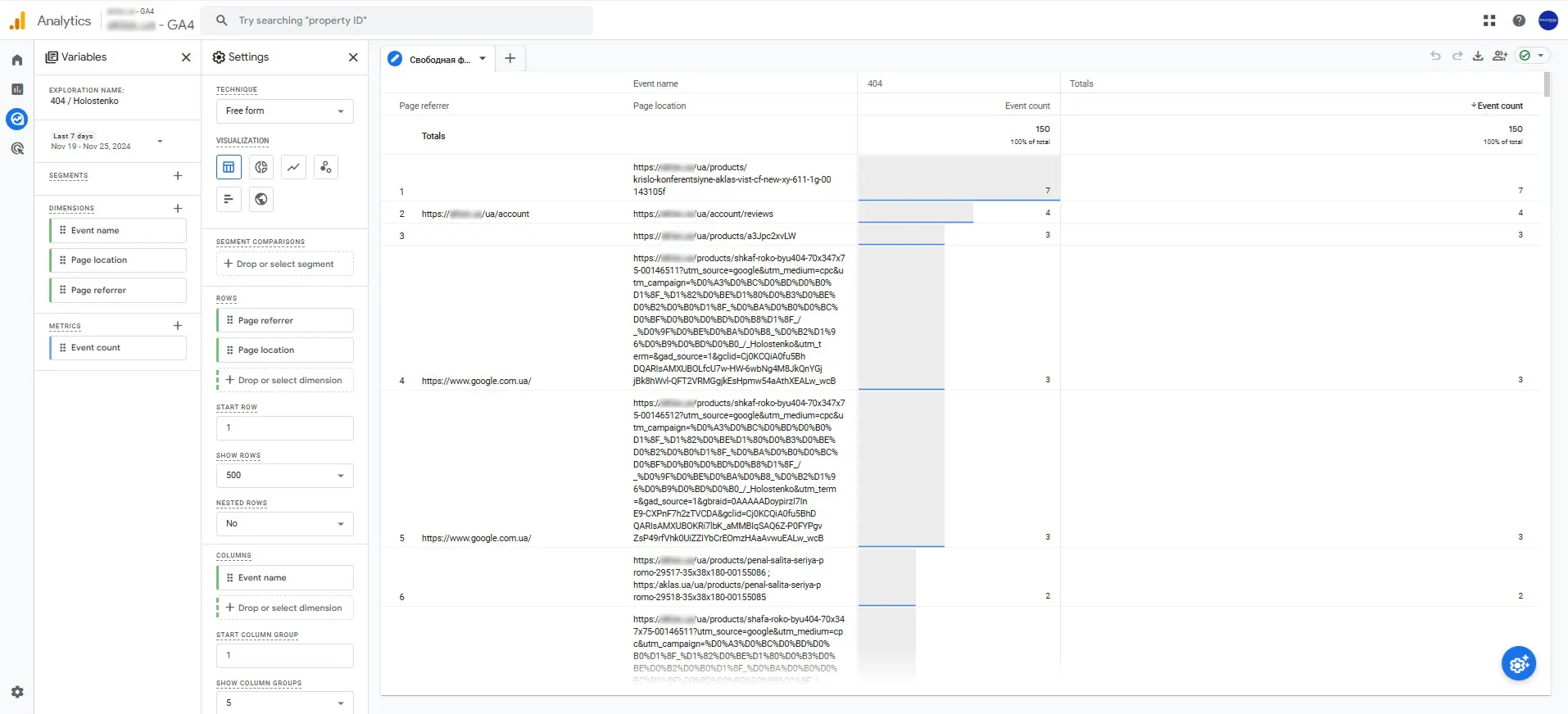
We create a custom report that identifies specific URLs of pages with a 404 status and their referral origin:
Tracking 404 errors with Google Analytics (if you don’t have Tag Manager)
If you can’t use Google Tag Manager, you can still catch 404s directly in Google Analytics. One way to do this is by creating a custom report that filters page titles for “404” or whatever your error page says.
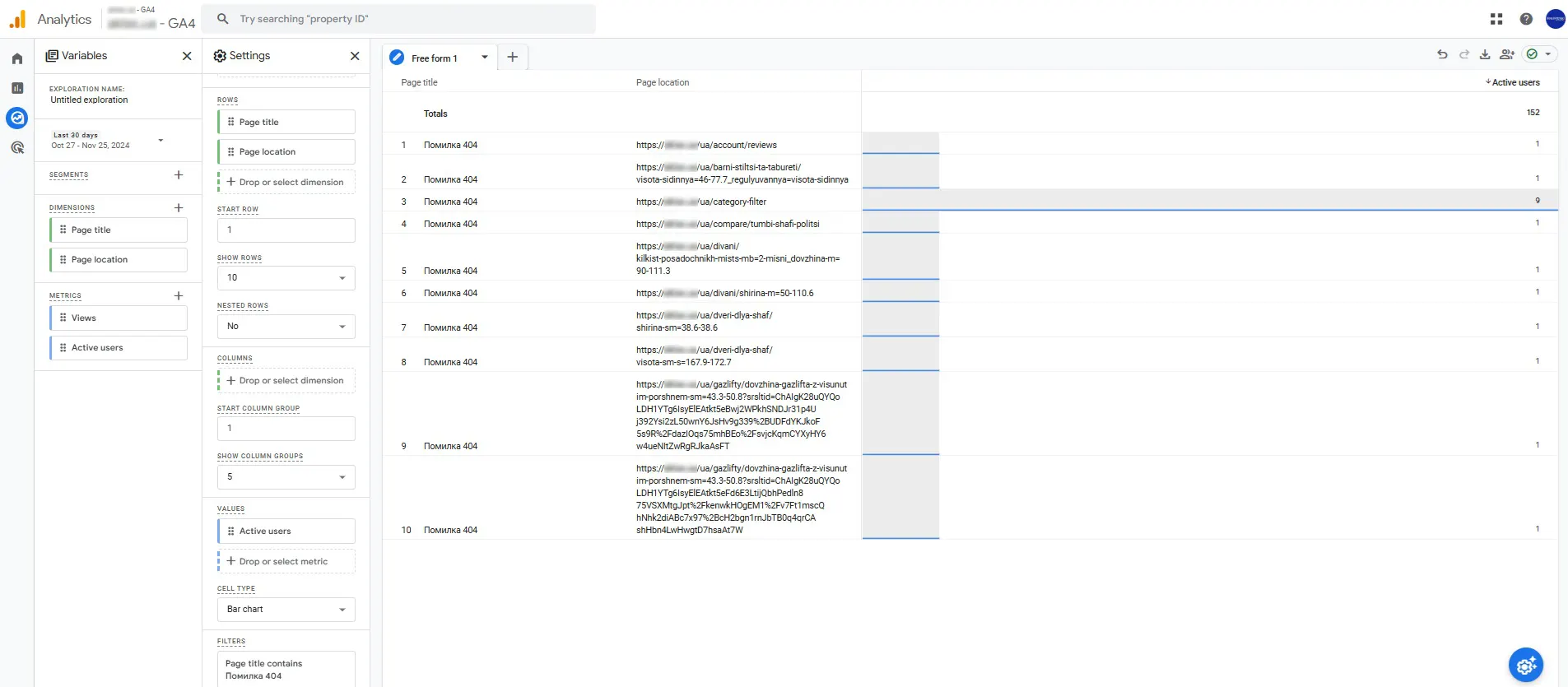
You can also add filters to track referral sources and previous page URLs, so you can figure out how users ended up on a broken page. This gives you some solid insight into what’s going wrong and why.
 Order a service