


In the fall of 2020, Google Analytics 4 (GA4) was introduced. Then, in the spring of 2022, Google announced that as of July 1, 2023, the old Universal Analytics (UA) would stop processing data. This makes the migration to Google Analytics 4 more relevant than ever, as the evolution of web analytics has now become irreversible.
We’ve previously discussed the benefits of GA4, and today we’re focusing on the migration process itself — just the basics, without any unnecessary details.
Let’s be clear upfront: there’s no "one-click" migration process, but we’ll guide you through the optimal way to handle it. We’ll talk about migrating using Google Tag Manager since Tag Manager is the best solution for managing tags.
➊ Installing GA4
Installing Google Analytics 4 with Tag Manager is straightforward, using the standard GA4 configuration tag.
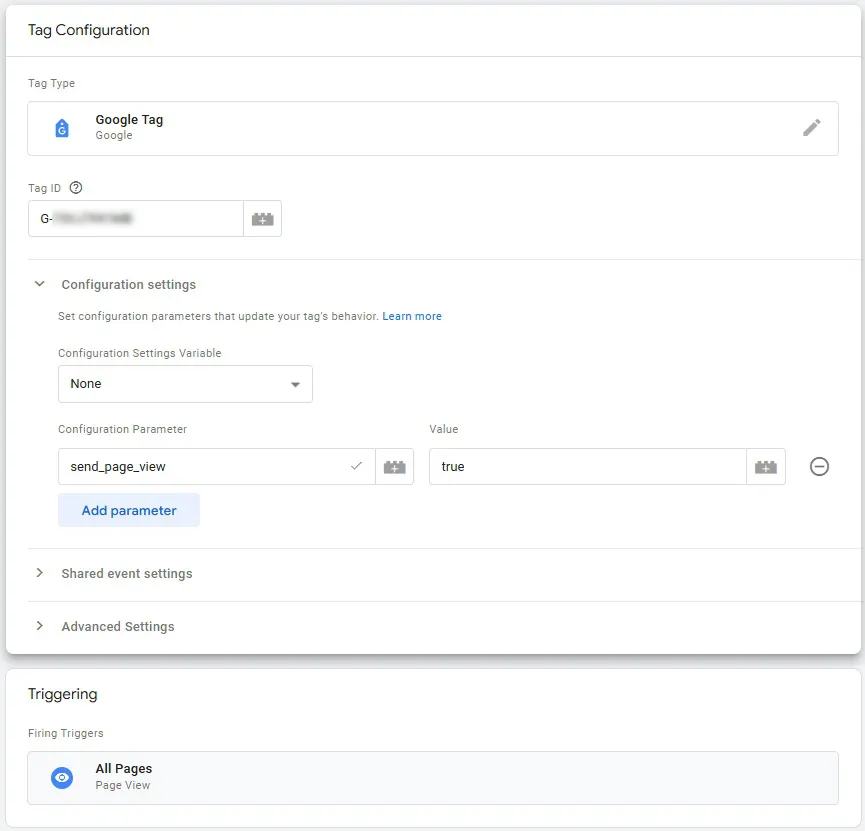
We’ve already detailed the installation process for Google Analytics 4 in our blog.
➋ Events and conversions
If you’ve previously set up event tracking for Universal Analytics, you likely already have event activation triggers in place, which will make setting up conversions for Google Analytics 4 much easier.
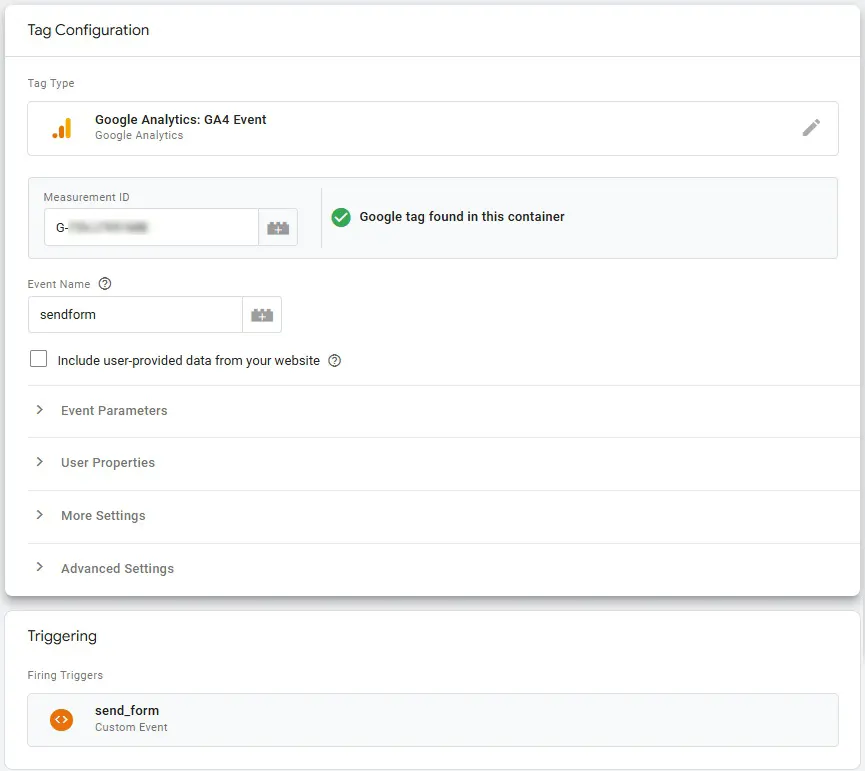
Simply create new event tags using the existing triggers, and wait for the data to start appearing in GA4. You’ll keep your old UA tags, while new GA4 tags will be added. Here’s a rough idea of what that setup will look like:

We’ve also covered how to set up conversions in GA4 in another article.
It’s important to note that Google Analytics 4 recently introduced the ability to import conversions from Universal Analytics. However, this doesn’t mean they’ll work if your triggers were set up through Tag Manager. In that case, you’ll need to follow step 1.
These are the two basic elements relevant to 90% of websites. For e-commerce sites, the process is a bit more complex due to the need to track sales and financial data.
➌ GA4 e-commerce
The dataLayer structure and the transaction tag in Google Tag Manager for e-commerce reports in GA4 are entirely different from Universal Analytics. Unfortunately, there are no simple solutions here — a completely new setup is required, both in the code and in the transaction tag in Tag Manager. We’ve covered this in detail in another article.
➍ GA4 Enhanced e-commerce
If you’ve previously implemented enhanced e-commerce, you’ll also need to redo the setup. Just like with standard e-commerce, the dataLayer structure is different, which affects both Tag Manager and the setup of all events.
➎ Audiences
There’s no automatic transfer of audiences from Universal Analytics. For GA4, these are considered new users with new settings, so you’ll need to set up audience collection from scratch.
And the most frequently asked question: Should you delete your old UA tags?
👉 No, you shouldn’t, because Universal Analytics is still more advanced and easier to understand when it comes to data reporting.
These are the most important aspects of the migration process. We hope this material was useful to you. For more detailed information, feel free to contact our agency.
 Order a service