


Sooner or later, when you deal with Facebook advertising, you’ll come across the tool known as Facebook Business Manager.
Facebook Business Manager is a versatile system for managing advertising on Facebook and Instagram, offering a wide array of commercial tools for administering advertising functions.
Let’s get started.
Only a verified Facebook user can create and own a Facebook Business Manager account. If you’re using a fake account, this won’t end well.
When do you need a Facebook Business Manager, and why is it essential?
👉 When working with an ad agency (sharing access to pages, pixels, ad accounts, catalogs, etc.);
👉 When collecting audiences for Instagram ads;
👉 When managing a Facebook store;
👉 When you need multiple pixels;
👉 When you need to manage multiple ad accounts simultaneously.
How to create and set up a Facebook Business Manager?
Creating a Facebook Business Manager account is straightforward – go to business.facebook.com, and the system will prompt you to set it up.
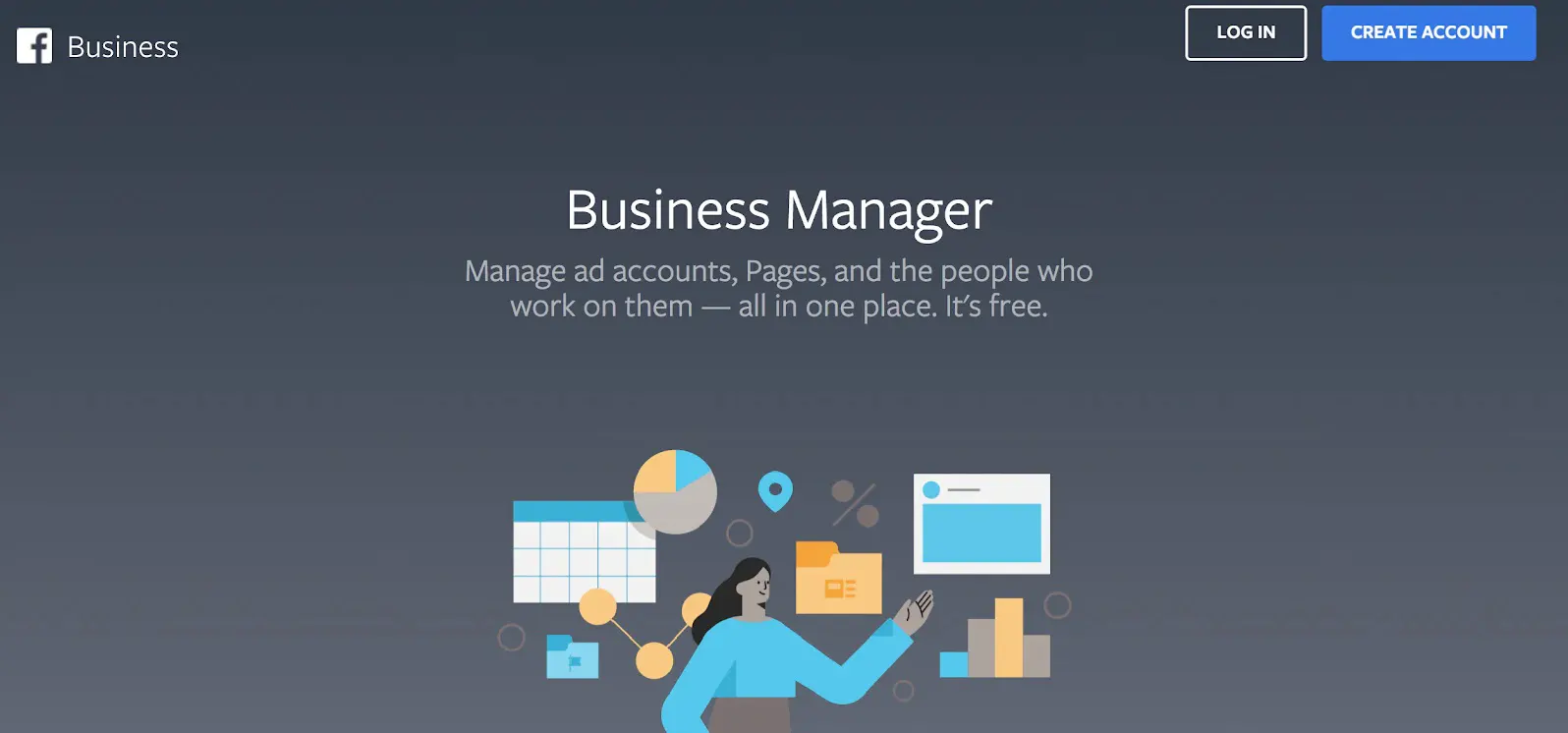
The real work begins after creation, as the business manager houses many settings and components. Let’s go over the main administrative features of Facebook Business Manager from top to bottom.
➊ Managing permissions in Facebook Business Manager
You’ll have three options for adding users to Business Manager:
👉 People;
👉 Partners;
👉 System users.
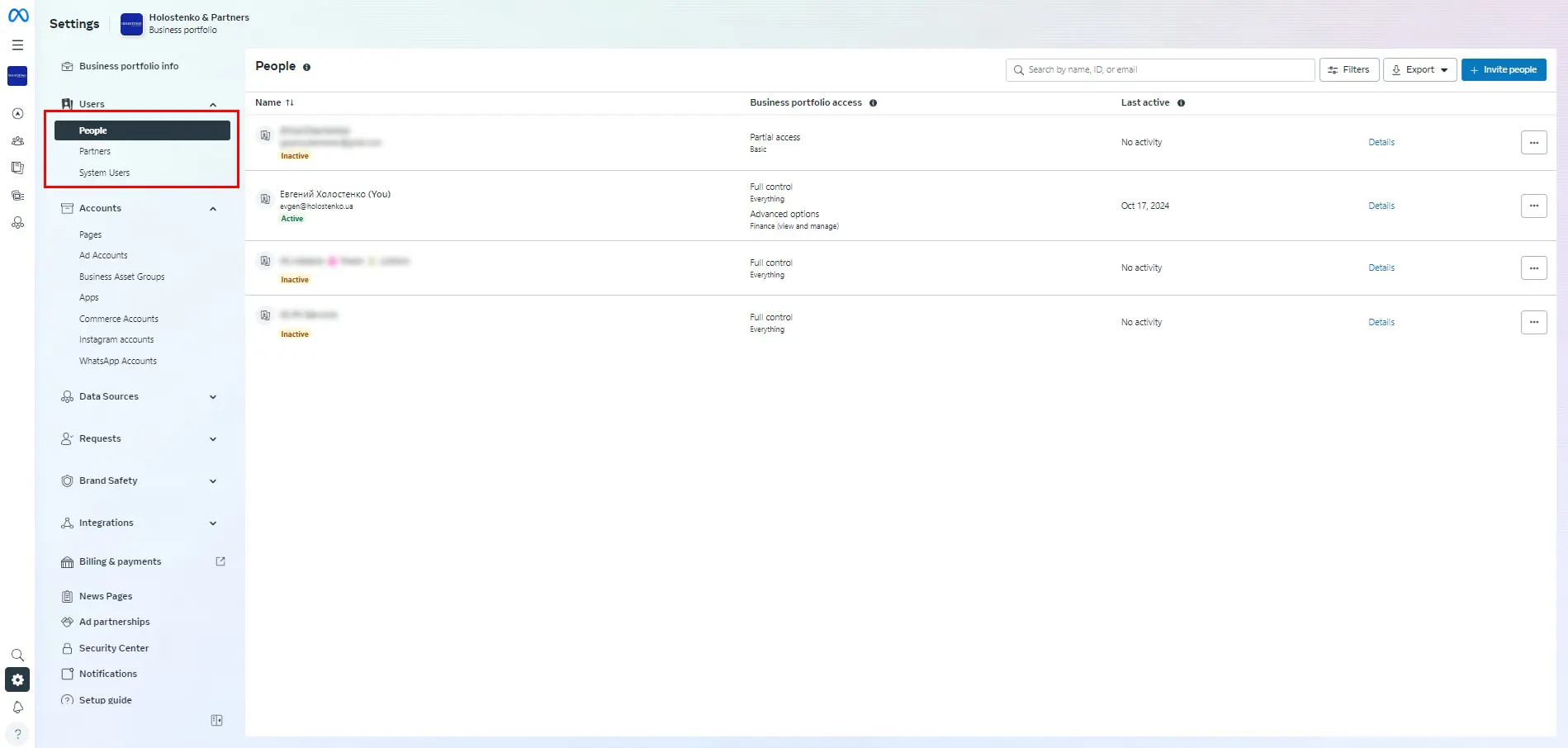
"People" are your employees, and "partners" are ad agencies. When you select any of these entities, you can grant them permissions to manage specific assets like ad accounts, pages, pixels, and more.
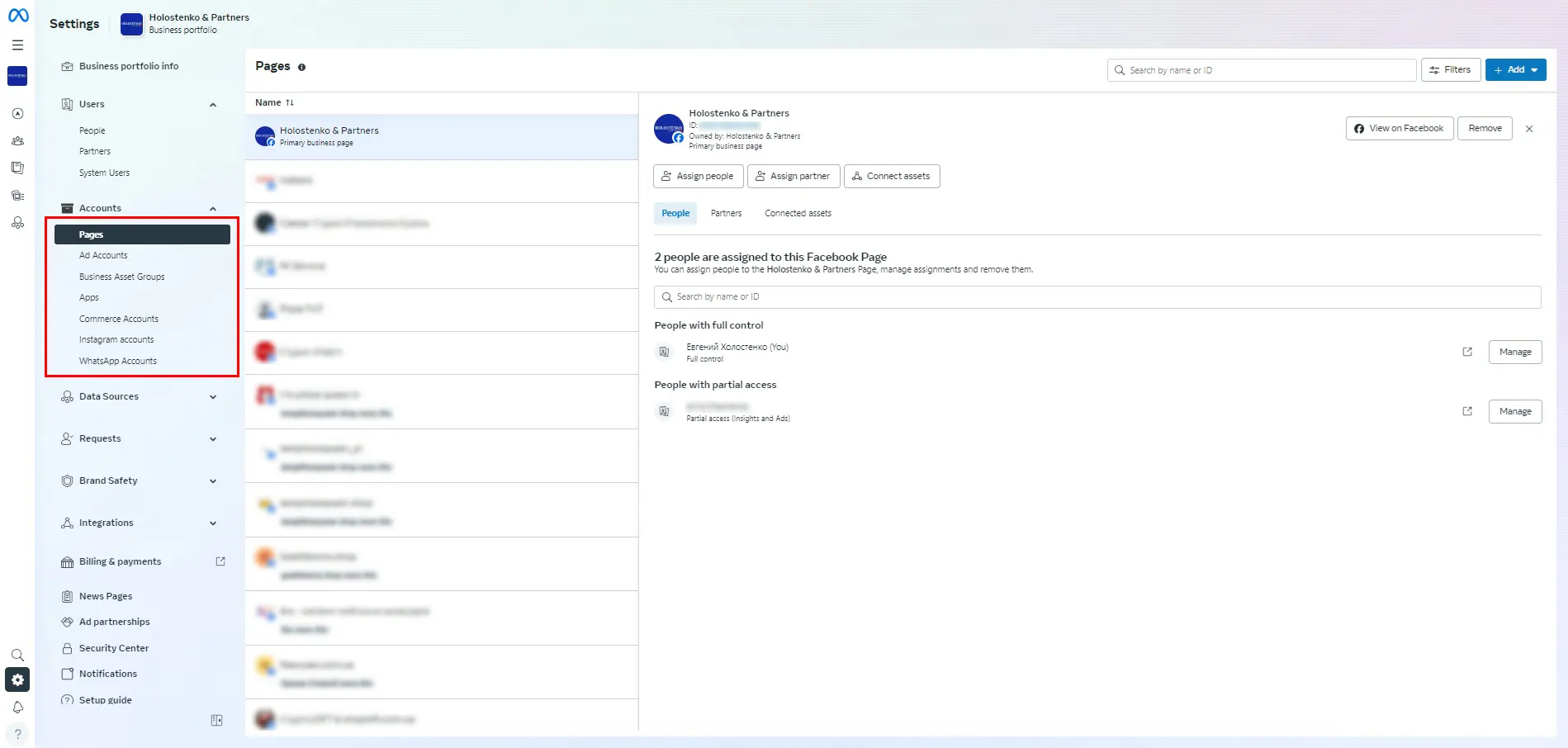
➋ Accounts
This section allows you to create and manage ad accounts and sync Facebook and Instagram pages.
➌ Data sources
These include systems for transmitting events and information, such as reading data from your site via pixels and managing Facebook catalogs.

These are the three core elements of setting up Facebook Business Manager. Also, don’t forget to complete your company information.
➍ Business information
Here, you’ll fill out all details about your company, after which the system will prompt you to verify it.

These are the basics. Now, let’s dive deeper into the tools you'll need for managing Facebook ads. When you click on the burger button, the system will guide you to additional tools:

One of the first tools to explore is Facebook Commerce Manager.
➎ Facebook Commerce Manager
This is a specialized tool for online stores.
It allows you to:
👉 Manage your product catalog;
👉 Sync pixel events with catalog data;
👉 Publish your Facebook store and monitor its analytics;
👉 Configure settings for product advertising and dynamic remarketing on Facebook and Instagram.

Closely linked to Facebook Commerce Manager is Events Manager, as data for dynamic remarketing on Facebook and Instagram flows from the pixel via Events Manager.
➏ Facebook Events Manager
This tool manages events within Facebook Business Manager. It not only transmits general events but also specific data from your website for ad management in Ads Manager.
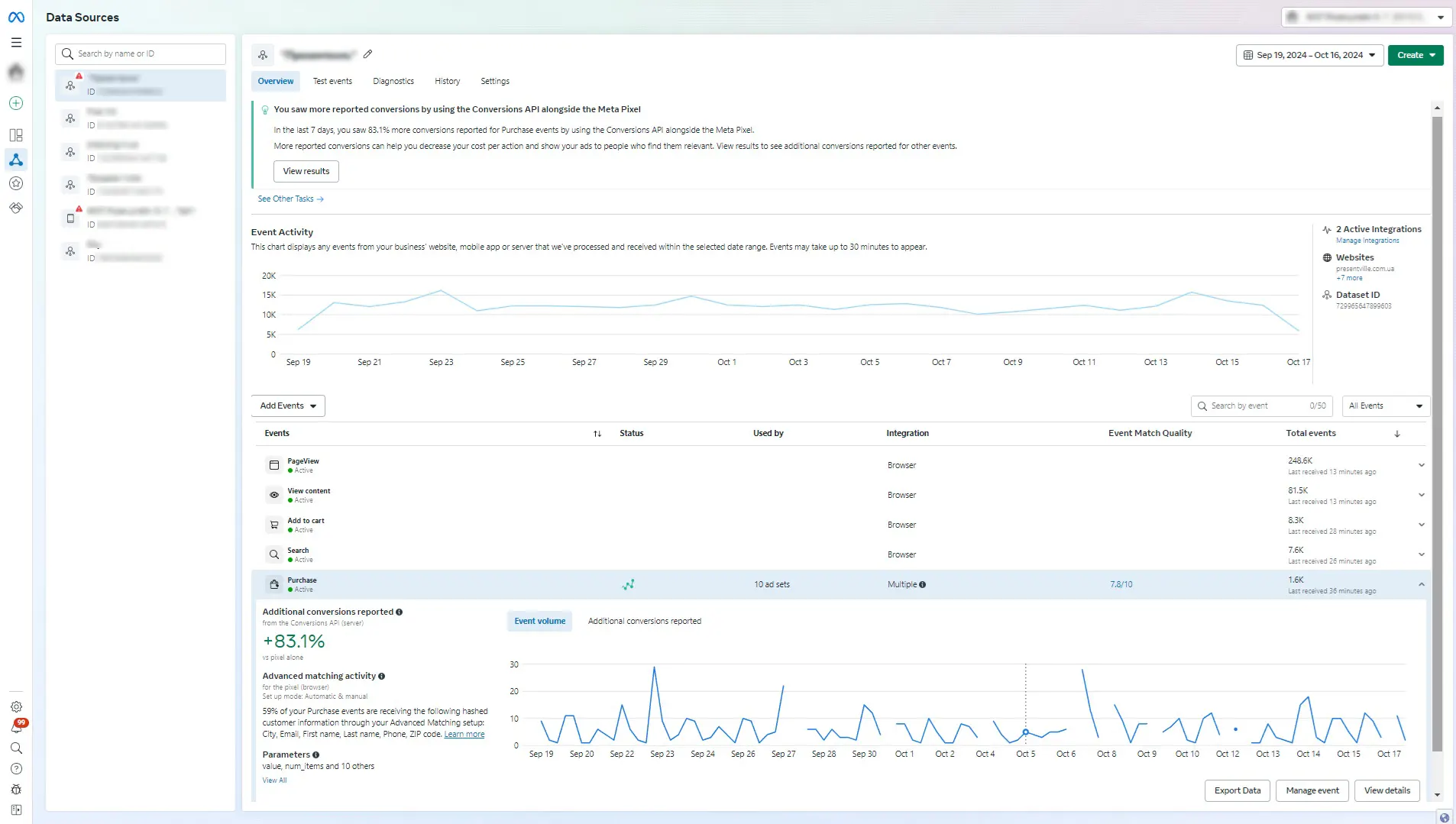
With Events Manager, you can:
👉 Monitor pixel events;
👉 Test event settings;
👉 Identify errors in data transmission;
👉 Configure data matching, APIs, cookies, and more.
You can also watch a video on product advertising, which is particularly useful for e-commerce stores looking to generate sales online:
These are the six most essential directions for setting up Facebook Business Manager. The seventh would logically be Ads Manager, but since it’s primarily for managing ads rather than settings, we’ve left it out of this article.
We hope you found this material helpful. Feel free to visit our blog again, and for assistance with setting up Facebook Business Manager, contact our agency.
 Order a service